TV Game Mode and Input Lag Explained
Game mode reduces work between input and picture
Input lag is the delay from a control or source change to its visible result on the television. Game mode typically disables or simplifies picture processing to reduce that delay. It does not make the console render faster, improve internet latency, or turn a relaxed farming game into an esport. It simply shortens one part of the chain.
Processing consumes time
Motion interpolation, noise reduction, scaling, frame buffering, and complex image analysis can delay display. Movie mode may value polish; game mode values responsiveness. The tradeoff can change local dimming, gradation, brightness, or upscaling behavior.
Enable game mode for the relevant input and confirm it remains active for both standard and HDR games. Some televisions store separate settings by signal type.
Refresh and frame rate affect the feel
A higher compatible refresh rate can present updates more frequently, while variable refresh rate can follow changing output within its supported range. Neither guarantees low lag if the television uses a slow mode. Read refresh rate explained and verify measured delay for the exact signal combination.
The console or computer must also generate frames promptly. Display lag, game-engine latency, controller path, network delay, and player reaction all coexist, like a committee nobody elected.
Use the correct port and signal mode
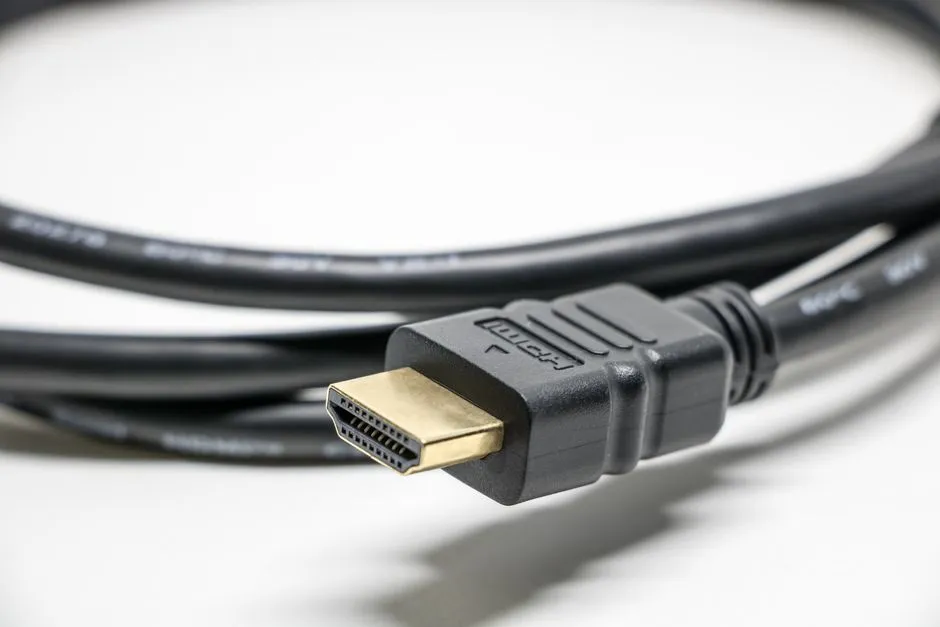
Some televisions support advanced gaming combinations on selected HDMI inputs. Connect the system to a compatible port, use a suitable cable, enable any required enhanced input option, and inspect the TV's signal-information panel. The HDMI guide helps map specialized ports.
Do not assume automatic low-latency mode is working merely because the screen briefly flashed. Check the picture-mode label and manual.
Diagnose with local play first
Test a familiar offline game so network conditions cannot imitate display delay. Use a wired controller if you are isolating wireless behavior. Compare game mode on and off while performing a repeatable action, such as moving a menu cursor or jumping at a known cue.
Human perception is useful but not a precise millisecond instrument. For exact comparisons, use controlled measurements from a trustworthy reviewer for the same model, firmware, resolution, refresh rate, and mode.
Tune picture without defeating the purpose
Start with game mode, then adjust basic picture controls conservatively. Avoid enabling interpolation or other features that the TV warns will increase latency. Compare dark detail because some game modes alter local dimming or tone mapping.
Use the first-picture-settings guide but keep a separate saved mode for games. A beautiful menu that responds next Thursday is not a successful calibration.
Check HDR and variable-refresh edge cases
HDR gaming can trigger another picture mode. Variable refresh may interact with brightness, flicker, local dimming, or frame-rate transitions on some models. Test the range of games you play, not one title at one frame rate.
If flicker, black screens, or dropouts appear, simplify the path, update according to official instructions, confirm cable and port capability, and disable one feature at a time.
Choose verified responsiveness
Look for independent input-lag measurements across the signals you intend to use. Confirm that required ports remain available after assigning eARC and other devices. Then judge picture tradeoffs with real games.
Game mode should make controls feel immediate without ruining visibility. The winning setup is not the one with the longest feature list; it is the one where pressing a button feels connected to what happens next.